Data Entry Screen
Most master-data forms in dsGST use this layout — for example Account Groups, Account Master, Manufacturers, Items, Users and To-Do Entry. A list on one side shows what exists, a locked form on the other shows the selected entry, and a row of buttons changes it.
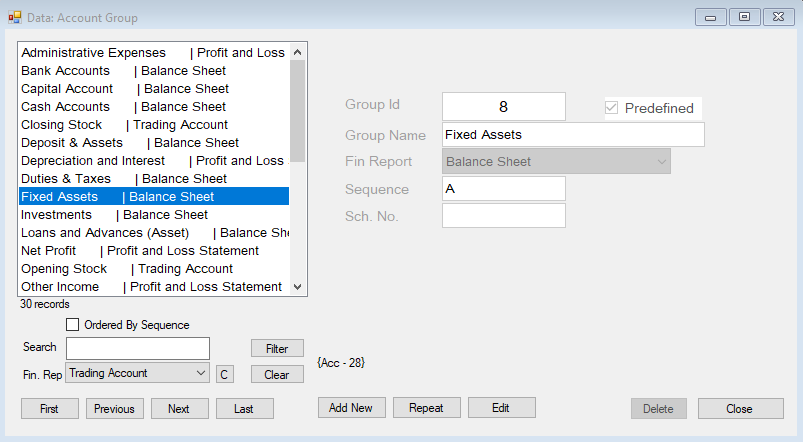
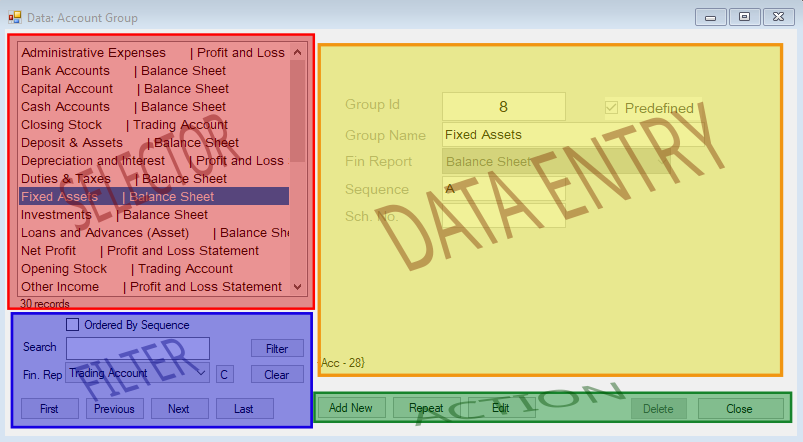
Parts of the Screen
- Selector Panel — the list of existing entries
- Filter Panel — narrows that list and moves through it
- Data Panel — the details of the selected entry
- Action Panel — the buttons that change the data
The content, size and format of each part varies with the data the screen handles.
Selector Panel
The Selector Panel is a list box of the entries already on record. Click an entry to show its details in the Data Panel.
Double-click an entry to open it for editing. This is the same as selecting it and pressing Edit.
Filter Panel
The Filter Panel controls what the Selector Panel lists.
- Type the text to search for and press
Filter. The panel turns orange to remind you that the list is filtered. - Press
Clearto remove the filter and list everything again. First,Previous,NextandLastmove through the entries in the Selector Panel.
Data Panel
The Data Panel is where you enter data. It is locked by default, and nothing can be changed until you start an action from the Action Panel.
Many screens also show a small usage summary for the selected entry, such as how many items or accounts use it. Check it before you change or delete an entry, because it shows how far a change will reach.
Action Panel
| Action | Description |
|---|---|
Add New | Clears the Data Panel and unlocks it for a new entry. Save creates a new record. |
Edit | Unlocks the Data Panel for the selected entry. Save replaces the existing record with your changes. |
Repeat | Unlocks the Data Panel for a new entry without clearing the current data. Save creates a new record from the changed data. Handy for several similar entries. |
Delete | Deletes the selected record, if it can be deleted. |
Close | Closes the screen. |
After you press Add New, Edit or Repeat, the Selector, Filter and navigation buttons are hidden and the Action Panel changes to:
| Action | Description |
|---|---|
Save | Saves the entry and locks the Data Panel again. |
Drop | Discards your changes and shows the entry as it was. |
Modes and Colours
The background colour tells you which mode you are in.
| Colour | Mode |
|---|---|
| Normal (grey) | Display — nothing can be changed |
| Light yellow | Add New |
| Light pink | Repeat |
| Light cyan | Edit |
Entering Data
- Press
Enterto move to the next field, likeTab.Enteron a button presses the button. - Fields that must be filled are checked when you press
Save. dsGST tells you what is missing, and the entry stays open until you fix it or pressDrop.
When a Button Is Missing or Disabled
- The
Add New,EditandDeletebuttons show only if your user has the matching permission. See User Permissions. EditandDeleteare enabled only when an entry is selected.Deletestays disabled when the entry is used elsewhere, such as an account that already has transactions. Use the usage summary to see where it is used.