Sales and Purchase Performance
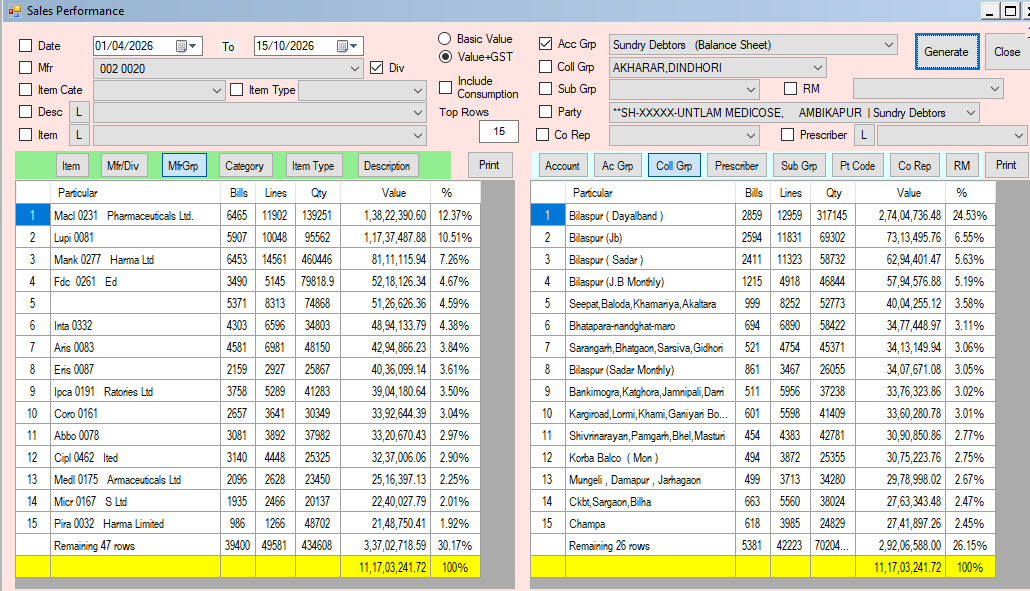
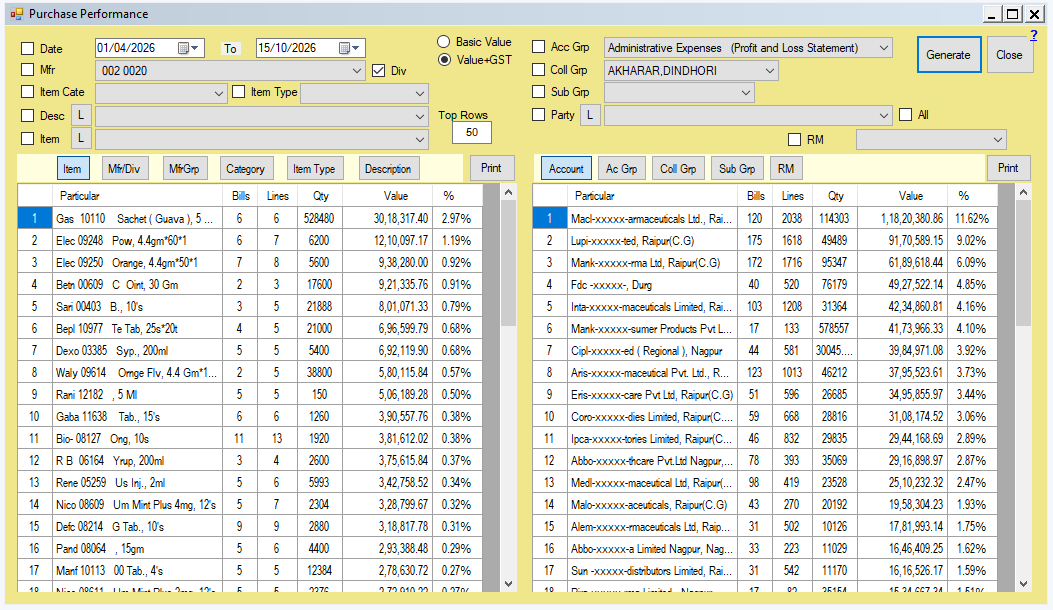
Rank your business by item and by party side by side: which products, manufacturers, customers or suppliers account for most of your sales (or purchases) in a period, and what share each holds. Sales Performance looks at sale bills and sale returns; Purchase Performance at purchases, purchase challans and purchase returns. The two screens work the same way.
Generating a ranking
-
Choose what to group by in each of the two panels.
Items panel Parties panel Item Account Mfr/Div (each division) Ac Grp (account group) MfrGrp (manufacturer group) Coll Grp (collection group) Item Type Prescriber Category Sub Grp Description Pt Code (patient code) Co Rep (company representative) RM (the RM group set on the account) -
Narrow the analysis with the filters: Date (period), Item, Mfr (with Div for a single division), Item Cate, Item Type, Desc, Party, Coll Grp, Acc Grp, Sub Grp, Prescriber, Co Rep and RM. Tick a filter and choose its value; the L buttons load the lists. Filters apply to both panels together, so ticking Mfr shows that manufacturer's customers on the right and its items on the left.
-
Choose the measure: Value+GST (default) or Basic Value (before tax).
-
Set Top Rows (50 by default; 0 for all). Rows beyond that are rolled into one "Remaining n rows" line, so the totals still agree.
-
Click Generate.
The sales screen starts with the debtors group ticked, so it opens on your customers. Include Consumption also counts internal consumption as sales, if your business needs it.
Reading the result
Each panel lists, for every item or party, the number of Bills, the number of Lines, the Qty, the Value and its % of the panel's total. The bottom line is the total. Returns are netted off, so a returned bill reduces the figures. The colour of the panel changes with what it is grouped by, to help tell them apart.
Drill down. Double-click a row to see the other side of it. Double-click an item to see which parties bought it; double-click a party to see which items it bought. The detail opens in a new window for the same period.
Print. Each panel has its own Print button, for the item side and for the party side.
Parties here means the party the bill was made out to. In Purchase Performance the party list holds only suppliers; tick All beside it, then click L, to choose from every account.