Receipt by Bill
Record money received from customers against the specific sale bills it settles. Each receipt is tied to a bill, so the bill's balance, the party's outstanding and the cash/bank account are all updated together. To receive one amount against several bills of the same party, use Multi Receipt by Bill.
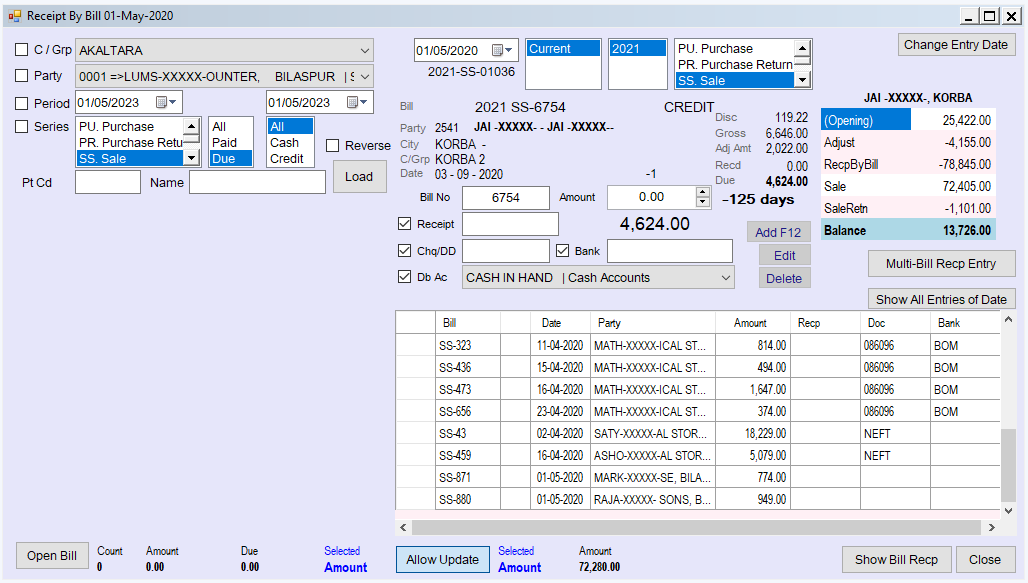
How the screen is organised
- Date (top) – the date on which you are entering receipts. All receipts you enter are filed under this date, and the grid at the bottom lists every receipt entered for it. Change the date to look at, or enter, another day's receipts.
- Pending bills (left) – the list of bills to receive against, with filters.
- Bill details (middle) – the bill you have picked: party, city, category, bill date, gross amount, discount, adjustments, received so far, balance, and how many days old the bill is.
- Entry boxes – cash/bank account, amount and reference details.
- Receipts of the day (bottom grid) – what has been entered for the date.
- Party history and summary – the party's recent receipts and an account summary appear alongside, to help you decide what to collect.
Receiving against a bill
- Choose the Date of the entry.
- Find the bill in one of two ways:
- Type it. Pick the year and series, type the Bill No and press Tab; the bill appears.
- Pick it from the list. Set the filters — Party, C / Grp (party category), Period (bill dates), Series, Cash / Credit / All and Due / Paid / All (the list starts with Due) — and click Load. Double-click a bill to take it into the entry area. In the list, grey rows are fully paid, cyan rows are partly paid and cash bills are shown in blue. The list shows the count, total and due amount of what is loaded; selecting cells shows their total.
- Check the details under Bill. The bill's party must be linked to an account (the Account Id turns pink if not); otherwise nothing can be entered.
- In Db Ac choose where the money went. It starts as Cash; you can pick a bank account instead.
- Enter the Amount. This is the only mandatory field apart from the bill.
- Optionally fill the references: Recp (your receipt-book number), Chq/DD (cheque or DD number) and Bank. These appear in the grid and on the printed receipt. The tick-boxes beside them decide whether the Tab key stops there, to keep fast entry quick for what you do not use.
- Click Add F12 (or press F12). The receipt is saved immediately — there is no separate Save — and shows in the grid in blue.
Tick Reverse if you want dsGST, after loading a bill, to filter the list to that bill's party and show all of the party's due bills.
Changing or deleting a receipt
Click the receipt in the grid; its bill and values come back into the entry area. Tick Allow Update (visible only if you have add/edit/delete rights) and use Edit (F11) or Delete (F10).
You can't change or delete a receipt that is reconciled with the bank (the Recon tag is shown) or whose date is locked (the Lock tag), and what you can do on a given date also follows your permissions. Change Entry Date opens a screen to move receipts from one entry date to another.
Printing and sending the receipt
Select the receipt in the grid, then:
- Print – prints the receipt for that party (Prvw to preview first).
- PDF – creates a PDF copy on your desktop and opens it.
- WApp / EMail – send the receipt to the party by WhatsApp or e-mail (e-mail needs mail to be set up).
Other buttons
- Show Bill Recp – all receipts entered against the bill on screen.
- Open Bill – opens the selected pending bill in its own entry screen.
- Multi-Bill Recp Entry – opens Multi Receipt by Bill for the same party.
- Db list – lets you receive against bills of earlier years kept in a previous database; the year is shown against the entry.
- Double-click the party name to open the party's account (ledger).