Multi - Receipt by Bill
Enter one receipt from a party and spread it over several of its bills in one go. Use it when a customer pays a lump sum (cash, cheque, UPI or bank transfer) against many bills. For one bill at a time, use Receipt by Bill. Both screens save the same kind of entry and appear in the same day's receipts.
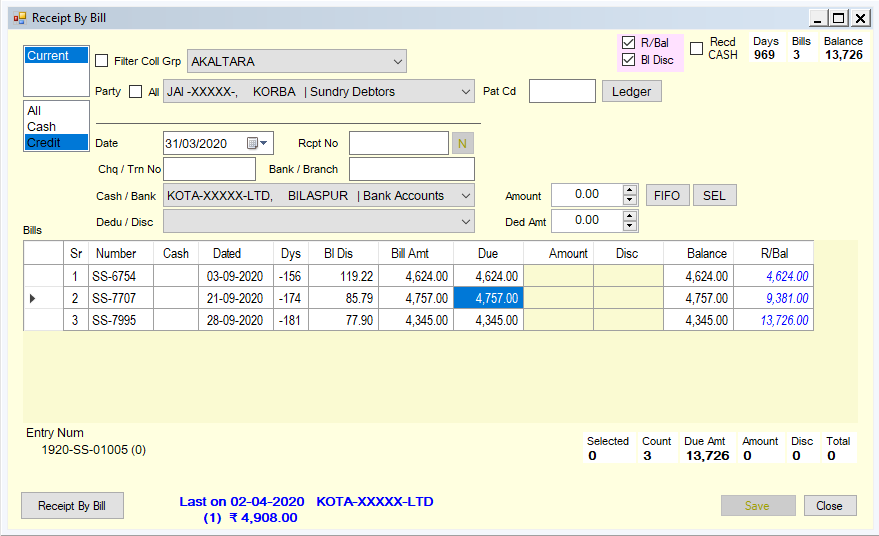
Steps
- Set the Date of the receipt. The Entry Num shows the day's receipt document the entries will be filed in.
- Choose the Party.
- The list holds debtor-type accounts; tick All to list every account.
Nadds a new account. - To narrow a long list, tick Filter Coll Grp and pick the collection group, or tick UPI Search and type part of the UPI id the customer paid from (use
*as a wildcard). Each party can carry several UPI ids. If the customer paid from an id the party doesn't have yet, type it and click Update AcMst to store it against the party for next time. - The panel beside the party shows what is outstanding (amount, number of bills, days since the oldest bill). It turns pink when the party's credit limit, bill-count limit or day limit is reached, and a LOCKED tag shows if the party is locked. Below it you see the last receipt taken from this party. Ledger and MYr Sum (outstanding of each year) help you check the position.
- The list holds debtor-type accounts; tick All to list every account.
- The grid lists the party's unpaid bills, oldest first, with bill date, days outstanding, the bill's own discount (Bl Disc), bill amount, Due, and a running balance (R/Bal). Cash bills are in blue; amounts in pink are negative (credit) items. Choose All / Cash / Credit to show only certain bills; the Db list switches to bills of earlier years.
- Fill the money details:
- Amount and the Cash / Bank account it went to. Tick Recd CASH if it's cash; it selects the cash account and skips the bank fields.
- Rcpt No (your receipt-book number;
Nadds one to the last), Chq / Trn No and Bank / Branch. After you enter a receipt number, the screen tells you if that number was already used and on which dates. - Ded Amt and the Dedu / Disc account, if part of the settlement is a deduction or discount (for example TDS, a short payment or a cash discount).
- Distribute the amount over the bills, either way:
- FIFO puts the amount against the oldest bills first until it is used up. Tick FIFO -ve Amounts to let it also set off negative balances.
- Or type the amounts in the Amount and Disc columns yourself. To apply the remaining amount to bills you pick, select their Amount cells and click SEL.
- The boxes show the difference between the amount you entered and what you allocated (for Amount and for Disc), and the Count, Selected and Total. When both differences are zero, Save is enabled.
- Click Save. One entry is created per bill, under the same receipt number. The bills are reloaded and the amount boxes cleared, ready for the next party.
If Save is disabled, the message under the grid lists the reasons: invalid date or no permission for the date, "Amount <> Adjusted value", "Dedu Amt <> Adjusted value", account not selected, or no amount entered. Tick Allow Zero to save a zero-value adjustment (for example to clear equal and opposite bills).
Double-click a bill in the grid to open it. Receipt By Bill takes you to the single-bill screen.