Reconcile GSTR-2A / 2B
Check that every purchase invoice your suppliers have reported on the GST portal is also in your purchase entries (and the reverse), so that you claim input tax credit only on bills that appear in GSTR-2A / 2B.
The work is done in two steps:
- Import the JSON file downloaded from the GST portal into dsGST.
- Match the imported invoices with your purchase entries and mark each one.
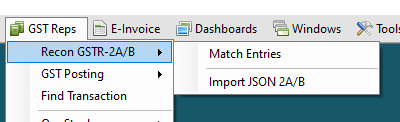
1. Download from the GST portal
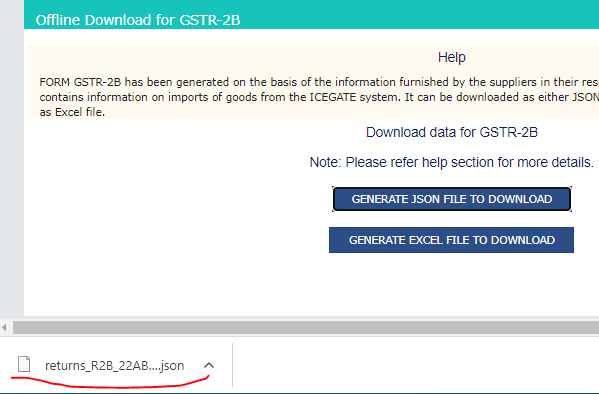
From the GST portal download the JSON file for the period — GSTR-2A or GSTR-2B. Keep the file name as downloaded: dsGST reads the return type (2A or 2B), the GSTIN and the period from the file name and from inside the file.
2. Import into dsGST
Open Import JSON 2A/B.
- Click JSON File and choose the downloaded file.
- dsGST shows the GSTin, Period, File Type (2A or 2B), File Date and File Source read from the file, and enables a button for each kind of document the file contains: b2b, b2ba (amended invoices), cdnr and cdn (credit / debit notes).
- Click a button to list those documents. The totals at the bottom show the number of suppliers (party), invoices (docu), and the taxable value and tax amounts (txval, iamt, camt, samt, csamt).
- Use Party Name, GSTin, Tax Columns and Match Cols to show or hide columns, and Print to take a printout.
- Click Save. The invoices are stored in dsGST, ready for matching.
Importing the same file again does not create duplicates: an invoice that is already stored is updated.
3. Match the entries
Open Match Entries. The imported invoices are listed; use Load (b2b / b2ba / cdnr / cdn) to choose the kind, and filter by Date Range and GST In if needed.
Match
- Choose how to look for purchases: Party's account (default), All Accounts, or Common Purchase A/c.
- Set Highlight Diff >= ₹ in taxable value — differences smaller than this are not flagged.
- Optionally tick Partial (match when only the last characters of the document number agree) or No Spl Chars (ignore special characters in document numbers).
- Click Match Invoices.
dsGST looks for each invoice among your purchase entries by supplier GSTIN, document number and tax rate. Each row then shows:
| Status | Meaning |
|---|---|
| Found | Exactly one purchase entry matches. Its document number and taxable / tax values are shown beside the portal values. |
| Partial | Matched on a partial document number. |
| Not Found | No matching purchase entry. |
| Orange cells | Found, but the taxable value differs by more than the limit you set. |
The counters (found, not found, difference, visible) summarise the result, and the Hide Marked / Hide Not Found / Hide Unaccepted / Hide With Difference / Hide No Difference / Hide Partial options narrow the list to what you still have to deal with.
Mark the result
Select rows and use:
| Button | Does |
|---|---|
| Accept | Marks the invoice and the matching purchase entry as accepted (A). |
| Difference | Accepts it but records that a difference was knowingly accepted (D). |
| Reject | Marks an invoice that has no entry as rejected (R). |
| Unmark | Takes the mark off, so the invoice can be matched again. |
| UnMark All | Clears the marks on all imported invoices and purchase entries, after confirmation. Use only to start a period over. |
A mark made here is also kept on the purchase entry itself, so you can see later which of your purchases have been reconciled.
Fixing what did not match
- Match Doc to Grid Row — pick the purchase entry from the list of your unmarked purchases and tie it to the selected portal row by hand, for example when the supplier's document number differs from yours.
- Update Doc No — copy the portal's document number into the matched purchase entry, so they agree from now on.
- Ledger — open the supplier's ledger to look for the bill.
- Delete — remove imported rows (only those not yet marked) that you do not want to keep, for example from a wrong file.
Each month, import the 2A/2B file after the supplier filing date, run Match Invoices, deal with Not Found and Difference rows with the suppliers, then Accept the rest. Re-import later to pick up amendments and late filings.